

Building a gaming PC under $100 is impossible from scratch, but it works as an upgrade path for an old office desktop. You can get a used or refurbished Dell OptiPlex, HP EliteDesk, or Lenovo ThinkCentre between $30 to $50 on eBay or Facebook Marketplace. From there, our budget of $100 stretches across buying a low-profile graphics card, a multi-core CPU, and a RAM upgrade that together turn the machine into a budget gaming rig capable of running modern titles at low settings.
Graphics card claims the largest share at around $40, targeting a low-profile GPU with at least 2GB of video memory (the GT 1030, RX 550, or GTX 750 Ti dominate this price tier). The CPU upgrade lands an older multi-core chip, where AMD Ryzen chips usually beat Intel on price for the same core count. Our remaining budget for building a $100 gaming PC goes into bumping up the RAM to 8GB or 16GB, and this is the single cheapest upgrade that delivers the biggest frame-rate gains in modern games.
The OptiPlex form factor matters more than most builders realise. The small form factor (SFF) variants accept only low-profile, single-slot graphics cards, which limits GPU choice but keeps the build silent and power-efficient. A full-size tower opens the door to better cards but costs more upfront. For a true $100 build, the SFF route delivers the best dollar-per-frame ratio.
A quick advice is to buy an old refurbished office PC and spend $100 on it to make it capable of modern gaming.
Quick Glance At Building A Gaming PC Under $100
Here’s a quick look at the price and what hardware to expect in a $100 gaming computer.
| Item | Target | Price Range |
|---|---|---|
| Base PC | Refurbished office desktop (Dell OptiPlex / HP EliteDesk) | $50–$75 |
| CPU minimum | Intel Core i5, 6th gen or newer | Included in base PC |
| RAM minimum | 8GB DDR4 | Included in base PC |
| Storage minimum | 256GB SSD | Included in base PC |
| GPU | Low-profile, no external power (GTX 750 Ti / GT 1030 / RX 550) | $20–$40 |
| Total build cost | Assembled and gaming-ready | $70–$115 |
| Capable games | LoL, Valorant, CS2, Minecraft, Fortnite (low–medium) | — |
| Limited games | Modern AAA at playable settings | — |
Can You Really Get a Gaming PC for Under $100?
A brand-new gaming PC under $100 is not available in 2026, but a working gaming PC under $100 is achievable through buying and upgrading a refurbished office desktop or old desktop. This low-cost gaming build uses a corporate retiree like a Dell OptiPlex or HP EliteDesk as the base, then adds a low-profile graphics card. Finally, you can build a low-budget gaming PC that handles esports titles at high frame rates, though modern AAA games at high settings are out of reach.
The math is simple. New pre-built gaming PCs start at $500 to $600 for the cheapest models, well above the $100 ceiling. The refurbished route lowers the entry cost dramatically by using machines that corporations have already paid for, used, and retired on a fixed replacement cycle. A 5-year-old Dell OptiPlex that cost the company $700 sells for $60 today, even though it still works perfectly.
Our strategy to build a $100 gaming PC is split in three parts. The first part is to buy a base PC at $50 to $75 with a CPU, RAM, SSD, motherboard, case, and power supply already installed and tested. The second part is to buy a low-profile graphics card between $20 to $40. The remaining $5 to $30 covers shipping or stays as a buffer for cables or a Windows license if needed.
What A $100 Gaming PC Can Do?
The finished $100 gaming PC handles a specific tier of games well:
- Esports titles at 60+ FPS — Valorant, League of Legends, CS2, Dota 2, Rocket League
- Sandbox and indie games at 60+ FPS — Minecraft, Stardew Valley, Hollow Knight
- Older AAA games at low-medium settings — GTA V, Skyrim, Fallout 4, Witcher 3
- Free-to-play battle royales at low settings — Fortnite at 40-60 FPS, Apex Legends at lower frame rates
What A $100 Gaming PC Cannot Do?
The build hits clear limits with modern demanding titles:
- Recent AAA games at playable settings — Cyberpunk 2077, Starfield, Elden Ring
- Ray tracing or DLSS — the GPUs in this budget do not support these features
- 1440p or 4K gaming — 1080p is the realistic resolution ceiling
- Streaming while gaming — limited headroom for encoder load
Why Spend $100 on Refurbished Office PC to Make It A Gaming PC?
Spending a $100 budget on a refurbished office PC to make it a gaming machine works because corporate-grade machines like the Dell OptiPlex, HP EliteDesk, and Lenovo ThinkCentre are built for 24/7 reliability rather than to hit a low retail price. The build quality, power supplies, and components are higher quality than consumer budget PCs costing twice as much. Corporations retire these machines on fixed cycles, flooding the secondary market with $50 to $75 units that still deliver 80 to 90% of the performance of a new $500 gaming PC.
The following four advantages make office PCs the right base for a budget gaming build.
1. Build Quality That Outlasts Consumer Budget PCs
Office PCs are engineered for 8 to 12 hours of daily use, 5 days a week, for 5 years, in environments where downtime costs money. That requirement shapes every component choice. Power supplies carry 80 Plus Bronze or better certification with quality capacitors. Motherboards use server-grade voltage regulation. Cases use steel rather than thin plastic. The result is a machine that has often been used for fewer total hours than a 1-year-old consumer PC.
2. The Market Is Always Stocked
Millions of office PCs hit the secondary market every year as corporations refresh their fleets on schedule. IT departments find it easier to bulk-sell to refurbishers than to evaluate or recycle each machine, which is why prices stay low. eBay alone lists thousands of used Dell OptiPlex and HP EliteDesk units at any given moment. Unlike new budget gaming PCs, where stock comes and goes, the office PC market is always deep.
3. The Cost Math Heavily Favors This Route
A Dell OptiPlex 7050 cost corporations around $700 new. After 5 years of office use, the same machine sells for $60 to $75 refurbished, which is roughly 10% of the original price. The components inside still deliver real performance: an Intel Core i5-8500 still handles modern games when paired with a graphics card, and 8GB of DDR4 RAM still meets the minimum requirement for 2026 gaming.
The table below compares why choosing a refurbished PC is a better choice.
| Gaming PC | Cost | Performance | Reliability | DIY Effort |
|---|---|---|---|---|
| Refurbished office PC + GPU (this guide) | $70–$115 | 80–90% of $500 PC | High (corporate QA) | Moderate (GPU install) |
| New budget gaming PC | $400–$600 | 100% | Adequate | None |
| Used gaming PC from individual | $150–$300 | 90–95% | Unknown | None |
What Specs to Look for In a Refurbished Desktop Before Turning It To A Gaming Machine?
Look for the following specs:
1. Check the Minimum Specs of Refurbished Machine
The old refurbished office PC needs to have an Intel Core i5 (6th generation or newer), 8GB of DDR4 RAM, and a 256GB SSD as the non-negotiable minimum specs for a $100 gaming build. Search for the models like Dell OptiPlex 7040, 3050, 7050, or HP EliteDesk 800 G2, G3, or G4. Avoid Pentium or Celeron CPUs, 4GB RAM configurations, and mechanical hard drives.
2. Look for Intel Core i5, 6th Generation or Newer CPU
The Intel Core i5 sits at the sweet spot for this build. It carries enough cores and clock speed for modern games, while staying cheap on the used market. The 6th generation (Skylake, 2015) is the minimum cutoff because it introduced DDR4 memory support, which matters for both performance and future RAM upgrades.
Acceptable Intel Core i5 models include:
- i5-6500 (6th gen, 2015) — base level, fully capable
- i5-7500 (7th gen, 2017) — slight performance bump
- i5-8500 (8th gen, 2018) — six cores, the sweet spot for value
- i5-9500 (9th gen, 2019) — newest commonly available in this price tier
An older i7 from the 6th generation or newer also works well and sometimes turns up at the same price as an i5. Avoid the i3, Pentium, and Celeron variants of these models, which lack the cores needed for modern games.
3. Get Minimum of 8GB DDR4 RAM
8GB of DDR4 RAM is the practical minimum requirement for gaming in 2026. Modern esports titles like Valorant and Fortnite use 4 to 6GB on their own, leaving little room for Windows and background tasks at 8GB. The 16GB configuration runs more smoothly, but 8GB is enough to play. DDR4 at 2400MHz or 2666MHz is standard for office PCs in this price tier.
Avoid:
- DDR3 RAM — only found on older pre-6th-gen models, which fail the CPU requirement
- 4GB configurations — insufficient for current games, leads to stuttering
4. Prefer Minimum Storage of 256GB SSD
A 256GB SSD is the minimum useful storage for a gaming PC. Modern Windows 11 uses around 30GB after updates, leaving 220GB for games. That fits Valorant (35GB), Fortnite (30GB), League of Legends (20GB), and a few smaller titles. A mechanical HDD is a dealbreaker, as it makes Windows boot, game loading, and general use feel painfully slow.
Where to Buy Refurbished Office PCs for Under $75?
Refurbished office PCs are available across three main marketplaces: eBay for the largest selection at $50 to $75 (sometimes with free shipping), Amazon Renewed for warranty-backed convenience at $60 to $80, and Facebook Marketplace for local pickup deals at $30 to $70 with no shipping cost. The right marketplace depends on the buyer’s preference for selection, protection, or savings.
I use Amazon instead of eBay for finding the best deals on the refurbed office or gaming PCs. Amazon Renewed listings cost $60 to $80, slightly above eBay, but include the Amazon A-to-Z guarantee and a 90-day Renewed Guarantee. Prime shipping cuts delivery to 2 days. The selection is smaller than eBay (50 to 100 units at any time versus eBay’s thousands), but the protection and shipping speed justify the small premium for buyers who want a hassle-free transaction.
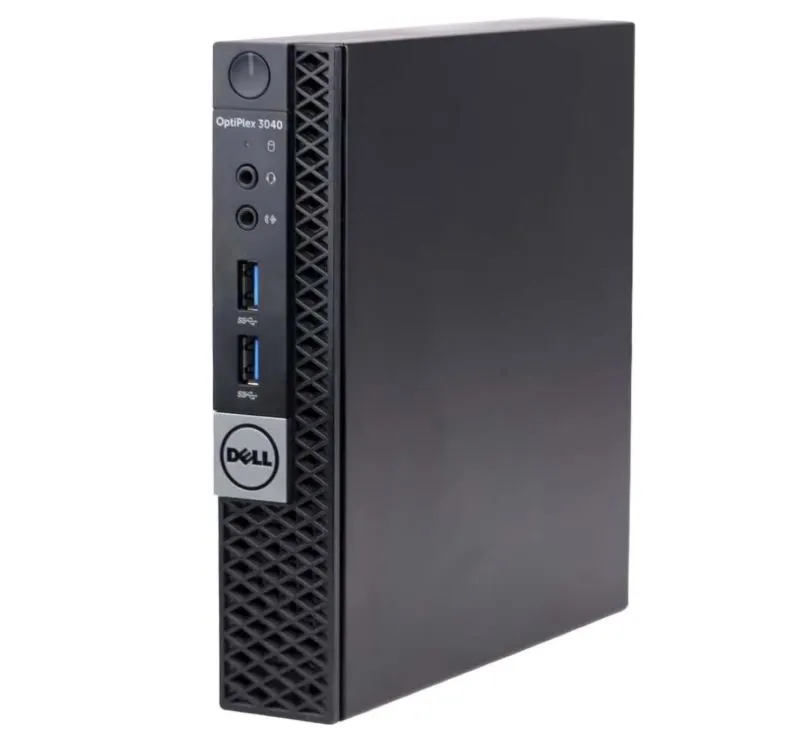
I’ve chosen a Dell Optiplex 3040 is a SFF PC from Amazon which has the suitable hardware for gaming. You just have to install a low-profile graphics card in this machine to play games on it.
Just like Amazon, eBay carries thousands of refurbished Dell OptiPlex and HP EliteDesk listings at any given moment. Prices run $50 to $75 for properly specced units, with free shipping common from established refurbishers. The platform’s selection makes it possible to find a specific configuration (CPU, RAM, and SSD all matching the target specs) without compromise.
Lastly, Facebook Marketplace lists local sellers offering $30 to $70 office PCs with no shipping cost. The savings on shipping ($20 to $40 on eBay) make this the cheapest source if a nearby seller has the right machine. The catch is no buyer protection and no warranty.
What Graphics Card Should You Add? ($20–$40 Budget)
The best graphics cards for a $100 gaming PC build are the NVIDIA GTX 750 Ti ($20–$35), NVIDIA GT 1030 GDDR5 version ($25–$40), and AMD RX 550 ($30–$45). All three are low-profile cards that draw under 75 watts from the PCIe slot, meaning no external power connector is required. The office PC’s stock power supply handles them directly. The GTX 750 Ti delivers the best value, the GT 1030 runs cooler and quieter, and the RX 550 offers a competitive AMD alternative.
Why Low-Profile, No-External-Power GPUs Matter?
Office or Refurbed PC power supplies range from 250 to 320 watts. They include the standard 24-pin motherboard connector and the 4-pin or 8-pin CPU connector, but they do not include the dedicated 6-pin or 8-pin PCIe power connector that mid-range and higher GPUs need. Installing a GTX 1060 or RX 580 would require a new power supply ($40 to $60) and either an adapter or a cable kit, which pushes the build well past $100.
Below are the graphics cards that draw power from the PCIe slot itself (75 watts maximum), which means they work with any office PC PSU without modification. Plug in, install drivers, play.
1: NVIDIA GTX 750 Ti (Best Value)
The GTX 750 Ti is the budget gaming PC classic for a reason. It launched in 2014, uses NVIDIA’s Maxwell architecture, draws 60 watts at peak, and still runs every major esports game at high frame rates in 2026. Used prices for GTX 750 Ti on eBay run $20 to $35 for the 2GB GDDR5 version, which is the one to target.
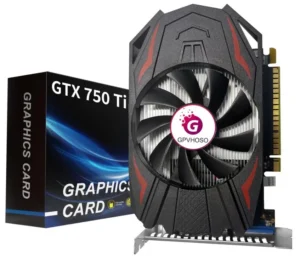
Key specs:
- Architecture — Maxwell (2014)
- Memory — 2GB GDDR5
- Power draw — 60 watts (no external connector)
- CUDA cores — 640
- Used price — $20 to $35
Game performance:
- League of Legends — 100+ FPS, high settings
- Valorant — 100+ FPS, high settings
- CS2 — 80 to 100 FPS, low-medium settings
- Minecraft — 60+ FPS, normal settings
- Fortnite — 40 to 60 FPS, low settings
- GTA V — 50 to 60 FPS, medium settings
The GTX 750 Ti’s main weakness is its age. Driver updates from NVIDIA still arrive for older games, but ray tracing, DLSS, and other modern features are unsupported. For an esports-focused build, this does not matter.
2: NVIDIA GT 1030 GDDR5 (Newer, More Efficient)
The GT 1030 launched in 2017 on NVIDIA’s Pascal architecture, with two distinct versions: GDDR5 and DDR4. Only buy the GDDR5 version. The DDR4 version performs roughly 40% worse due to slower memory bandwidth and trails even the GTX 750 Ti in gaming benchmarks.
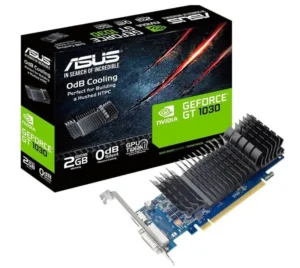
Key specs (GDDR5 version):
- Architecture — Pascal (2017)
- Memory — 2GB GDDR5
- Power draw — 30 watts (no external connector)
- CUDA cores — 384
- Used price — $25 to $40
Game performance:
The GDDR5 GT 1030 performs roughly on par with the GTX 750 Ti in most esports games, with the same 60+ FPS in Minecraft, 100+ FPS in Valorant and LoL, and similar results in Fortnite and CS2. The GTX 750 Ti edges ahead in some titles due to higher memory bandwidth, but the gap is narrow.
Why pick the GT 1030 over the 750 Ti:
- Lower power draw (30W vs 60W) means cooler temperatures
- Newer architecture supports more modern codecs (HEVC, VP9)
- Single-slot design fits even tighter SFF cases
- Better idle power for general desktop use
Why pick the 750 Ti over the GT 1030:
- Cheaper used ($20 vs $30 typical)
- Slightly higher peak gaming performance
- More plentiful in the used market
3: AMD RX 550 (Solid AMD Alternative)
The RX 550 launched in 2017 on AMD’s Polaris architecture. It targets the same budget gaming tier as the GT 1030 and GTX 750 Ti. Used prices run $30 to $45, which is the highest of the three options.
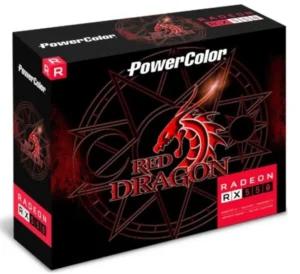
Key specs:
- Architecture — Polaris (2017)
- Memory — 2GB or 4GB GDDR5
- Power draw — 50 watts (some variants need a 6-pin connector)
- Stream processors — 512
- Used price — $30 to $45
Critical warning on the RX 550: Some variants ship with a 6-pin PCIe power connector. These do not work in office PCs without a PSU upgrade. Before buying, confirm with the seller that the specific card draws all power from the PCIe slot, not from a separate cable. The truly low-power variants from Sapphire and MSI exist, but verifying matters.
Why pick the RX 550:
- 4GB GDDR5 version exists, which helps in some newer games
- Open-source AMD drivers run better on Linux for dual-boot setups
- Slightly stronger raw compute performance than the GT 1030
Why skip it:
- Higher used price than the other two
- Power connector confusion makes verification harder
- Slightly less common on the used market
In case you want to cut more on GPU cost, consider this GT 610 on Wallmart.
Performance Comparison Between These Low TDP GPUs
| GPU | Power | Price | LoL | Valorant | Minecraft | Fortnite | CS2 |
|---|---|---|---|---|---|---|---|
| GTX 750 Ti | 60W | $20–$35 | 100+ FPS | 100+ FPS | 60+ FPS | 40–60 FPS | 80–100 FPS |
| GT 1030 GDDR5 | 30W | $25–$40 | 100+ FPS | 100+ FPS | 60+ FPS | 40–60 FPS | 80–100 FPS |
| RX 550 | 50W | $30–$45 | 100+ FPS | 100+ FPS | 60+ FPS | 40–60 FPS | 80–100 FPS |
How to Install Graphics Card Into Your Refurbished PC to Make It A Gaming PC?
Installing a graphics card into an office PC takes 20 to 30 minutes and requires only a Phillips head screwdriver. The process: shut down the PC and unplug it, open the side panel, remove the rear PCIe slot bracket, seat the GPU firmly into the PCIe x16 slot, secure it with the bracket screw, close the case, connect the monitor to the new GPU’s port, power on, and install drivers from the NVIDIA or AMD website. Static electricity precautions matter, but no advanced skill is needed.
Step 1: Power Off and Disconnect the PC
Shut down Windows completely, not sleep or hibernate. Unplug the power cable from the back of the PC. Press the power button once with the cable disconnected to drain any residual electricity from the capacitors. Wait 30 seconds before opening the case. Disconnect the monitor cable, keyboard, mouse, and any USB devices.
Move the PC to a clear workspace and lay it on its side, with the side panel facing up.
Step 2: Open the Side Panel
Most office PCs use either thumbscrews or a single latch to release the side panel. Dell OptiPlex SFF models often have a single release lever at the back; HP EliteDesk models often use captive thumbscrews. Lenovo ThinkCentre models vary by generation. Remove the necessary screws or release the latch, then slide the panel back and lift it off.
Set the panel aside in a safe spot. Avoid placing it where it might fall on the open PC.
Step 3: Locate the PCIe x16 Slot
Look for the long horizontal slot on the motherboard, typically near the rear of the case. The PCIe x16 slot is the longest expansion slot (about 89mm long) and usually sits closest to the CPU. There may be shorter PCIe x1 slots nearby, but the long slot is the one needed for the graphics card.

In most office PCs, the x16 slot is the top expansion slot. In some SFF cases, a riser cable carries the slot at a 90-degree angle to keep the GPU horizontal.
Step 4: Remove the Rear PCIe Slot Bracket
The back of the case has horizontal metal brackets covering each expansion slot opening. Identify the bracket that lines up with the PCIe x16 slot. Remove the single screw holding that bracket in place and lift the bracket out. Some cases use a single horizontal bar that secures all brackets; in that case, release the bar first.
Set the screw aside; the same screw will secure the GPU after installation.
For double-slot GPUs (some GTX 750 Ti variants), remove two adjacent brackets to make room for the card’s cooler.
Step 5: Seat the Graphics Card
Open the anti-static bag and remove the GPU, holding it by the edges and the backplate. Avoid touching the gold connector pins on the bottom edge or the components on the back of the board.
Align the GPU’s PCIe connector (the long row of gold contacts on the bottom edge) with the PCIe x16 slot. The card’s rear bracket should fit into the slot opening at the back of the case.

Press the card down firmly and evenly until it seats fully into the slot. A small click is audible when the locking tab on the slot engages. The card should sit flush, with no visible gap between the connector and the slot.
Step 6: Secure the Card
Replace the screw that previously held the rear PCIe bracket, now securing the GPU’s bracket in place. This screw prevents the card from sliding out during transport or under the weight of larger coolers. Do not overtighten; firm finger-tight is enough.
If the case used a horizontal retention bar, replace it now.
Step 7: Close the Case
Slide the side panel back into place and secure it with the original screws or latch. Move the PC back to its workspace.
Step 8: Connect the Monitor to the New GPU
Plug the monitor cable into one of the ports on the new graphics card, not into the motherboard’s video output. Once a discrete GPU is installed, most office PCs automatically switch primary display output to the new card, but using the GPU’s port directly guarantees this.
Most low-profile GPUs offer one HDMI port and either a DisplayPort or DVI output. The GT 1030 typically has HDMI plus DisplayPort. The GTX 750 Ti often has HDMI, DisplayPort, and DVI.
Turn on your computer and see if the display is working fine.
Step 9: Install the GPU Drivers
Open a web browser and visit the manufacturer’s driver page:
- NVIDIA (GTX 750 Ti, GT 1030) — nvidia.com/drivers, search by GPU model
- AMD (RX 550) — amd.com/support, search by GPU model
Download the latest Game Ready or Adrenalin driver for the specific card. Run the installer and follow the prompts. The screen may flicker briefly during installation as the driver loads. Restart the PC when prompted.
After restart, the GPU is fully functional. Open any game to verify performance.
A $100 gaming PC built around a refurbished Dell OptiPlex 3050 with an Intel Core i5-8500, 8GB DDR4 RAM, 256GB SSD, and a used GTX 750 Ti graphics card delivers real gaming performance for under the budget. Total cost runs $75 to $115 depending on shipping and individual deal hunting. The machine handles every major esports title at 100+ FPS, plays older AAA games at low-medium settings, and outperforms any new pre-built PC at twice the price.
The trade-offs are clear: modern AAA titles at high settings stay out of reach, ray tracing and DLSS are unsupported, and the build requires 20 to 30 minutes of basic DIY work to install the GPU. For students, casual gamers, and first-time PC builders, this strategy delivers the lowest-cost entry point to PC gaming in 2026.
Is $100 Budget Enough to Build A Gaming PC?
Technically, a $100 budget is insufficient to build a decent gaming PC. For a gaming PC that handles modern games, a budget of $1000 to $1500 gets you a machine to play any modern title at hihgher FPS.
Are $100 Gaming PCs Good?
A $100 gaming PC is good for playing 10 years old titles like GTA V, Far Cry 3, Minecraft, etc at low-medium settings. However, for high-end modern games, a $100 may lag or stutter in games at higher resolutions.
Can A $100 Gaming PC Play Fortnite?
Yes, a $100 gaming PC can play Fortnite at 720 low-medium settings.
Can A $100 Gaming PC Play Valorant?
Yes, a $100 gaming PC can play valorant at lowest settings.